How to create a wordpress website Step by Step

To create a wordpress website first step is to buy the domain and the hosting.

Domain name is the name for your business like www.techsoftsystem.com or www.yourcompanyname.com

Hosting is the place where all the backed file and database will be stored.

 There are many companies from where we can buy the domain and the hosting.

www.hostinger.com

www.namecheap.com

www.godady.com

You can visit all these website and check the domain name and hosting plans, select the company according to your requriments. 

Step-1 Buy domain and hosting

After selecting the company look for the domain name availability if the domain name is available you select the domain and pay online also check the hosting as well and but it according to your requriments

Step-2 Installing wordpress on Hosting

After buying domain and hosting next step is to installed wordpress, for that there are 2 options automatic and manual installation.

Most of the hosting providers offer on click installations like in hostinger.

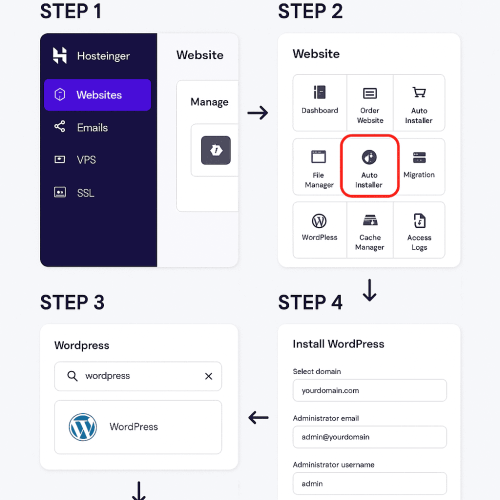
To install the wordpress in hostinger you have to go to the websites on the left end on your hpanel then click on add website the select the wordpress from the drop down. Then it will take you to a page where you have to Create login details for your WordPress account, then click on next it will take you to a page where it says create a website with AI or wordpress just select wordpress. 

In the next page it will ask you to  Choose a pre-built website or theme instead just use theme instead, then a popup will appear and you can select you theme from there and when you click next it will ask for Recommended plugins just installed them and click next then you will see the page where you have to select the domain name to connect it with wordpress, then click on next and it will start installing wordpress on your domain.

 
how to install wordpress on hostinger

Step-3 Installing themes and or importing pre-build templates of theme

WordPress offers many free themes with the help of them we can create or website, and many themes offers the staters templates according to the business natures just look for the pre build templates and you can see select the style according to your requirements

Buying paid themes

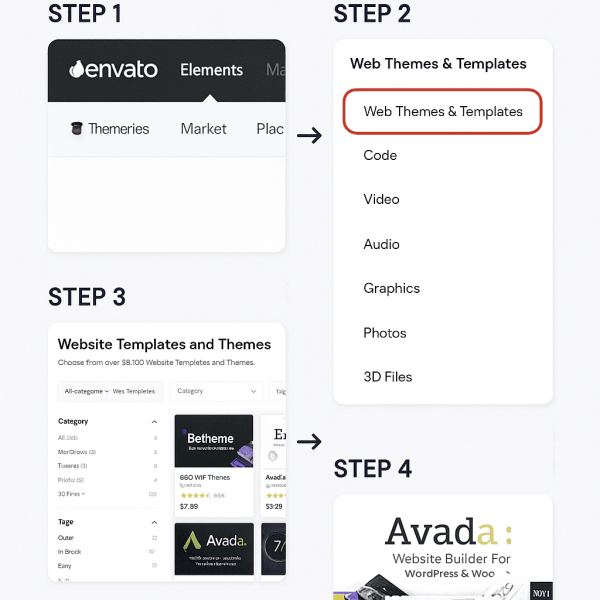
Some time if the free themes did not match your requirements then you can go for the paid themes for that just visit themeforest in the search bar type your business nature or category of your business then you can see the prices for every theme and you can preview the themes in live mood check everything if you like the theme then buy it and download the zip file for the theme.

How to install theme manually 

After downloading the zip file just go to the wordpress dashboard and then go to appearance then themes and the clickadd theme and you will see the option to upload theme just upload the zip file of the theme which you have downloaded from themeforest .

Make sure that read all the documents of the themes because after uploading the theme, make sure that you have installed all the recommended plugins for the theme in your dashboard you will find the notifications with all the recommended plugins make sure that you have installed and active all these plugins, we have to install the template for that many theme use different options, some theme have one click demo importer and some themes give starter template option you have to see it buy your self which one your theme gives. 

ChatGPT Image Sep 30, 2025, 05_35_13 PM (1) (1)

Step 5: Customize Your Website

Now that WordPress is installed, it’s time to make your website look and feel unique. Customization is where your site comes to life.

1. Set Up Your Site Identity

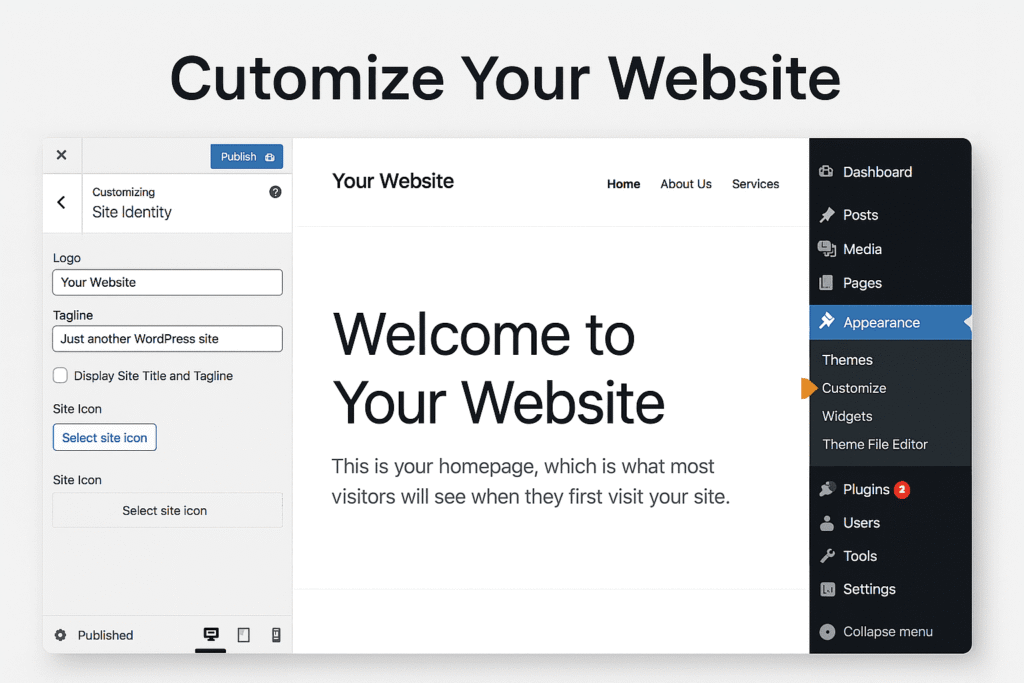
Go to Appearance → Customize → Site Identity.

Add your logo, site title, tagline, and favicon (the small icon shown in browser tabs).

Make sure your tagline explains what your site is about (good for SEO). Example: “Affordable Taxi Services in London – Available 24/7.”

2. Create Essential Pages

Home Page – Clear introduction and call-to-action.

About Us – Share your story and build trust.

Services/Products – What you offer with detailed descriptions.

Blog – Share updates, news, or tutorials (great for SEO).

Contact Page – Include a form (use WPForms plugin), phone number, email, and Google Maps location.

3. Set Up Menus & Navigation

Go to Appearance → Menus.

Add key pages to your navigation bar.

Keep it simple: Home | About | Services | Blog | Contact.
 A clear menu improves user experience and SEO.

4. Install Must-Have Plugins

Yoast SEO or Rank Math → for SEO optimization.

Elementor → drag-and-drop website builder.

WPForms → easy contact forms.

WooCommerce → if you want an online store.

Book Now

Project Details